

Introduction
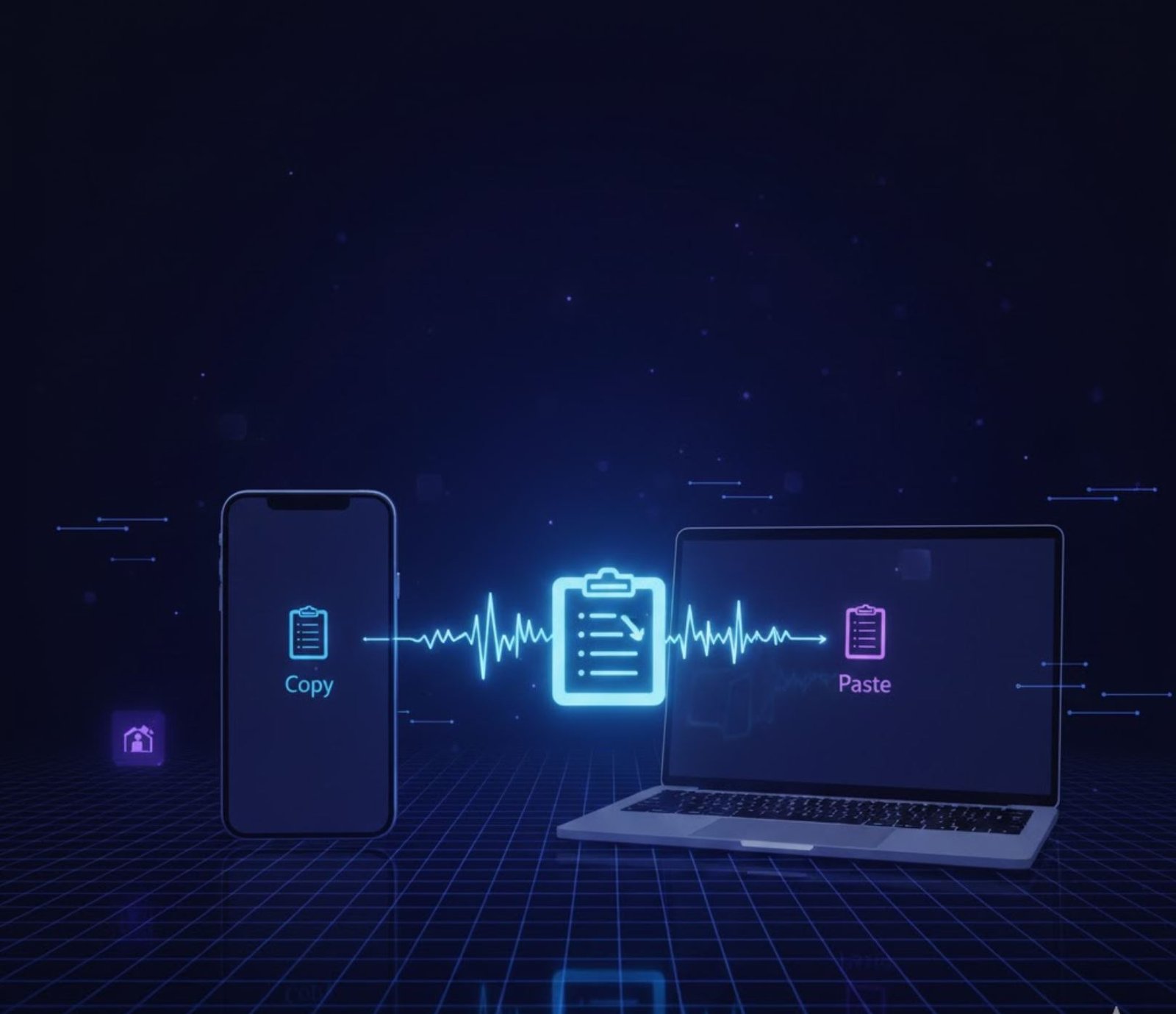
Switching between your phone and PC can be a productivity nightmare. Copying a link, text, or image from one device and transferring it manually is time-consuming. What if you could copy something on your phone and paste it directly on your PC — instantly? That’s where the Cloud Clipboard comes in. It bridges your devices, allowing smooth, real-time copy-paste. In this guide, we’ll explore how to set it up, use it effectively, and maximize your workflow.
What Is Cloud Clipboard?
Cloud Clipboard is a feature built into modern operating systems that lets you share clipboard content across multiple devices. Essentially, anything you copy on one device — text, images, or links — can be accessed on another device in real-time.
Key Features:
- Cross-device syncing: Access clipboard items on your phone or PC seamlessly.
- History management: Keep a history of copied items for later use.
- Secure storage: Clipboard data is encrypted when synced via cloud services.
- Supports text and images: Not limited to just text; images and screenshots work too.
Devices Compatible With Cloud Clipboard
Cloud Clipboard works best with devices within the same ecosystem or apps that support cross-platform clipboard sharing.
Windows PCs:
- Windows 10 and Windows 11 (Cloud Clipboard feature)
- Requires a Microsoft account
Mobile Devices:
- Android: Supports Cloud Clipboard via Microsoft SwiftKey Keyboard
- iOS: Supports Universal Clipboard within Apple ecosystem (iPhone, iPad, Mac)
Notes on Compatibility:
- Android devices need Microsoft SwiftKey installed and linked to the same Microsoft account as your PC.
- For Apple devices, ensure iCloud is enabled, and both devices use the same Apple ID.
How to Enable Cloud Clipboard on Windows PC
Follow these steps to activate Cloud Clipboard:
- Open Settings → System → Clipboard.
- Toggle Clipboard history to On.
- Toggle Sync across devices to On.
- Sign in with your Microsoft account if prompted.
Once activated, anything you copy on your PC will be stored in the cloud, accessible from other devices.
How to Enable Cloud Clipboard on Android
- Download and install Microsoft SwiftKey Keyboard.
- Open SwiftKey Settings → Rich Input → Clipboard.
- Enable Sync clipboard history.
- Log in with your Microsoft account (same as your PC).
Tips:
- Ensure your phone’s keyboard is set to SwiftKey as the default keyboard.
- Clipboard history on SwiftKey can be managed directly from the keyboard for quick access.
How to Enable Universal Clipboard on Apple Devices
- Sign in to iCloud on both devices using the same Apple ID.
- Enable Handoff in Settings → General → AirPlay & Handoff.
- On Mac, go to System Settings → General → AirDrop & Handoff, and enable Allow Handoff.
- Now copy content on one device and paste it on another seamlessly.
Practical Examples and Use Cases
Cloud Clipboard is not just a convenience — it can transform how you work:
Example 1: Copy-Paste Between Devices
- Copy a URL from your phone’s browser
- Paste it directly into your PC’s browser without emailing or messaging it to yourself
Example 2: Sharing Screenshots
- Take a screenshot on your phone
- Paste it directly into a document or chat on your PC
Example 3: Coding and Development
- Copy code snippets from a tutorial on your phone
- Paste directly into your IDE on your PC
Example 4: Multi-tasking Productivity
- Copy references, notes, or quotes on your phone
- Paste into your Word documents or emails on your PC
Benefits of Using Cloud Clipboard
- Time-saving: Eliminates manual transfers like email or messaging.
- Seamless workflow: Works across multiple devices for instant content transfer.
- Enhanced productivity: Particularly useful for professionals, students, and developers.
- Secure syncing: Data is encrypted during cloud transfer.
Pros & Cons
| Pros | Cons |
|---|---|
| Works across multiple devices | Requires internet connection |
| Supports text, links, and images | Needs compatible software/apps |
| Keeps clipboard history | Some features limited to ecosystem-specific devices |
| Increases productivity | Occasional syncing delays |
Frequently Asked Questions(FAQs)
Can I copy files using Cloud Clipboard?
No, Cloud Clipboard supports text, links, and images. For file transfers, use OneDrive, Google Drive, or AirDrop.
Is my data safe on Cloud Clipboard?
Yes, data is encrypted during syncing via Microsoft or Apple cloud services.
How many items can Cloud Clipboard store?
Windows 10/11 stores up to 25 clipboard items. SwiftKey supports a similar limit. Apple’s Universal Clipboard retains the last item copied.
Does Cloud Clipboard work offline?
No, cross-device syncing requires an active internet connection.
Can I disable Cloud Clipboard?
Yes. On Windows, go to Settings → System → Clipboard → turn off Sync across devices. On mobile, disable it in SwiftKey or Handoff settings.
Tips for Maximizing Cloud Clipboard Use
- Regularly clear history: Avoid clutter and ensure privacy.
- Use shortcuts: Windows (Win + V) to access clipboard history quickly.
- Enable notifications: SwiftKey can notify you when new clipboard items are synced.
- Combine with cloud storage: For files or large content, integrate with OneDrive or iCloud.
Read more: Extend Headphone Life: Care Tips That Most People Ignore
Conclusion
Cloud Clipboard is a simple yet powerful tool that bridges the gap between your phone and PC. Whether you’re a student, professional, or casual user, it streamlines daily tasks and eliminates the hassle of manual transfers. By setting it up on your devices, you can enjoy a seamless, efficient workflow. As technology continues to evolve, cross-device features like Cloud Clipboard will become even more integral to productivity.
